Download Baofeng Programming Software, CPS & USB Drivers
Find the correct Baofeng programming software, CPS download, USB cable driver or user manual for your radio model. Use the model finder below for UV-5R, BF-888S, UV-32, DM-32UV and other supported radios, or choose CHIRP-next for a compatible analogue radio.
Always match the software to the exact model name printed on the radio label. Read from the radio and save a backup before changing channels or settings.

🔍 Find Software for Your Baofeng Model
📌 Check the label first: Similar model names can use different software. Confirm every letter, number and suffix on the label under the battery or on the product packaging before downloading.
🔍 No software found for this model.
Try a shorter search term, check your model label, or contact Baofeng UK support with a photo of your radio label.
Software Download List
Select your radio series below to find the correct programming software, CPS and user manual. Always confirm the exact model name on the radio label before downloading.
Having cable issues? Fix a cable or driver problem ↓
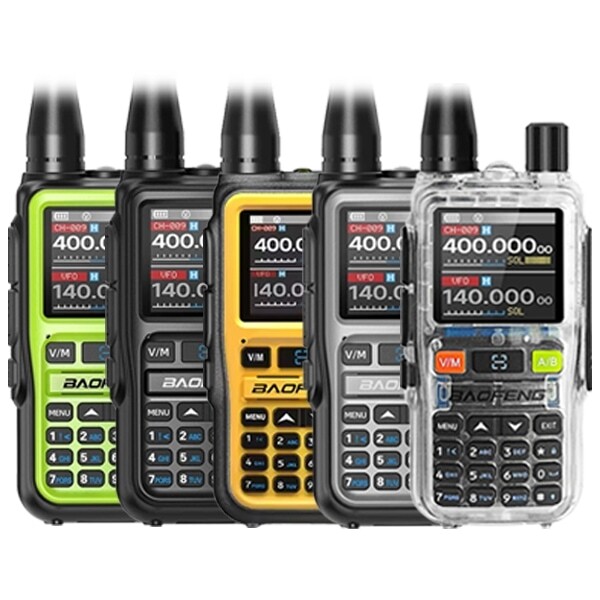
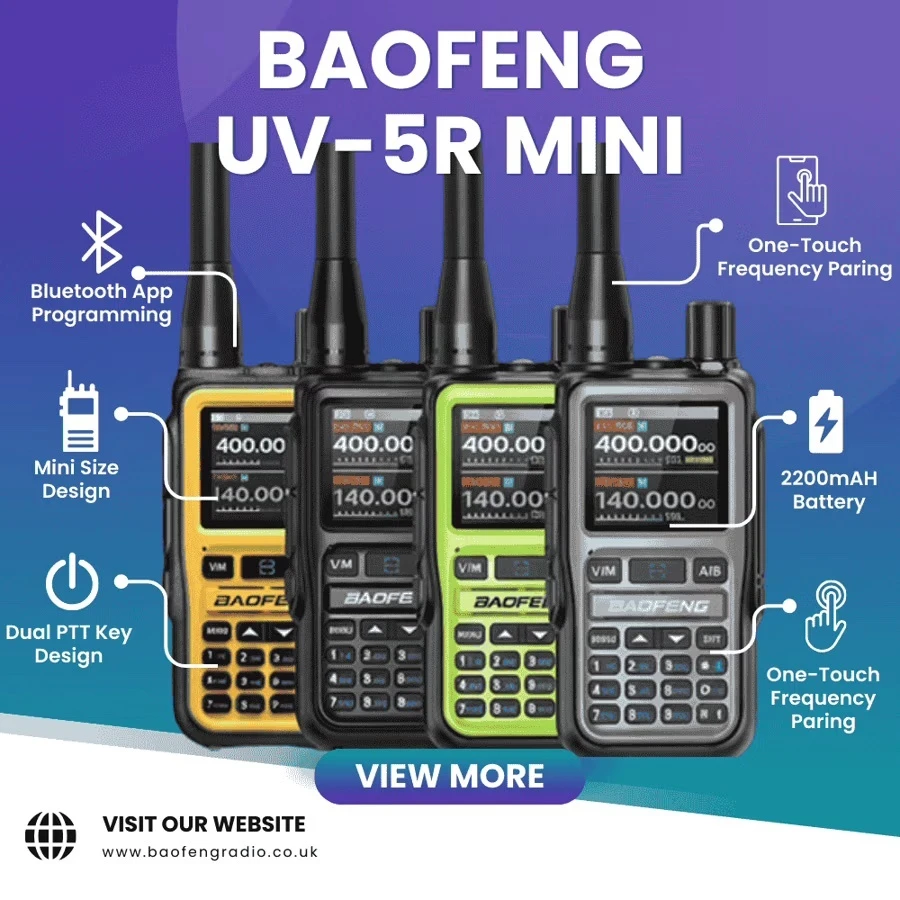
UV-5R Mini
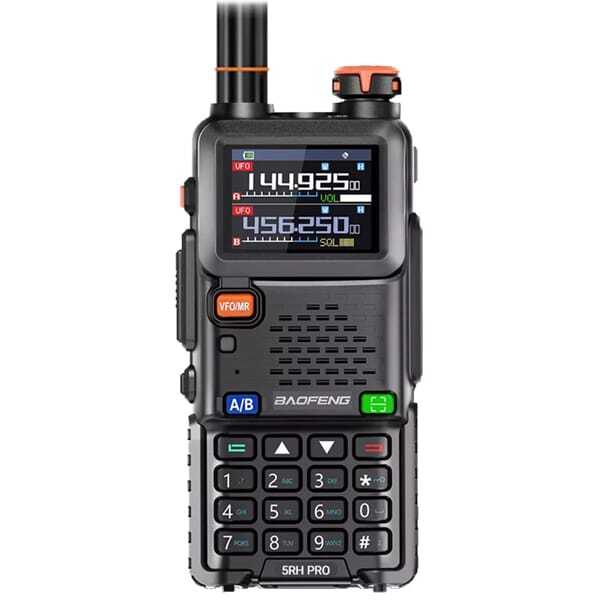
UV-5RH Pro GPS
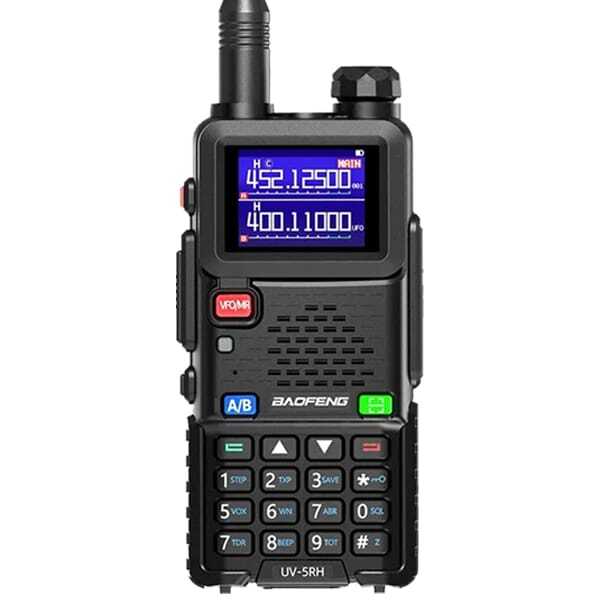
UV-5RH
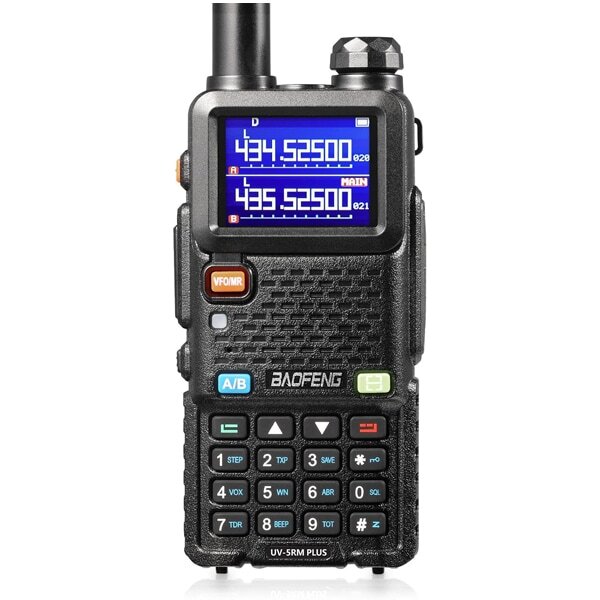
UV-5RM Plus
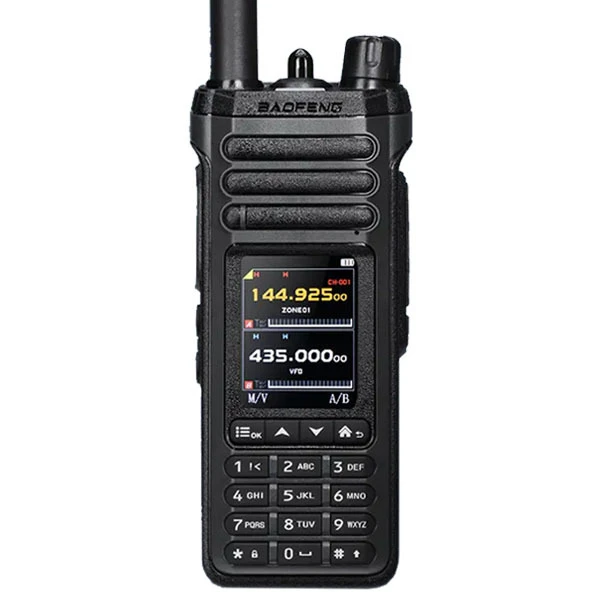
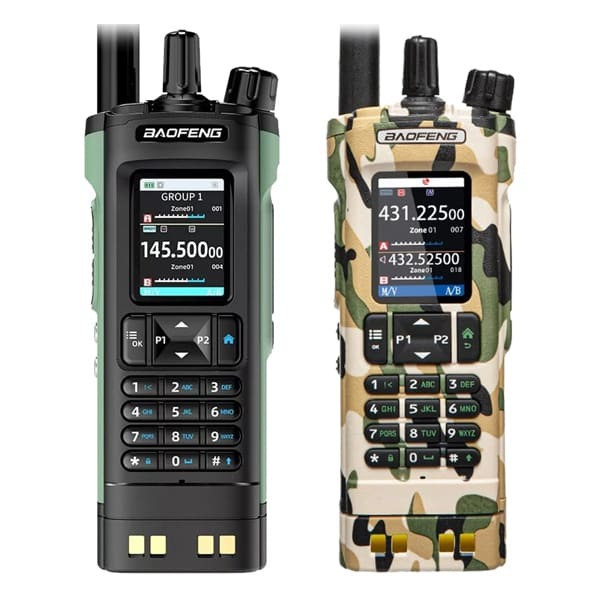
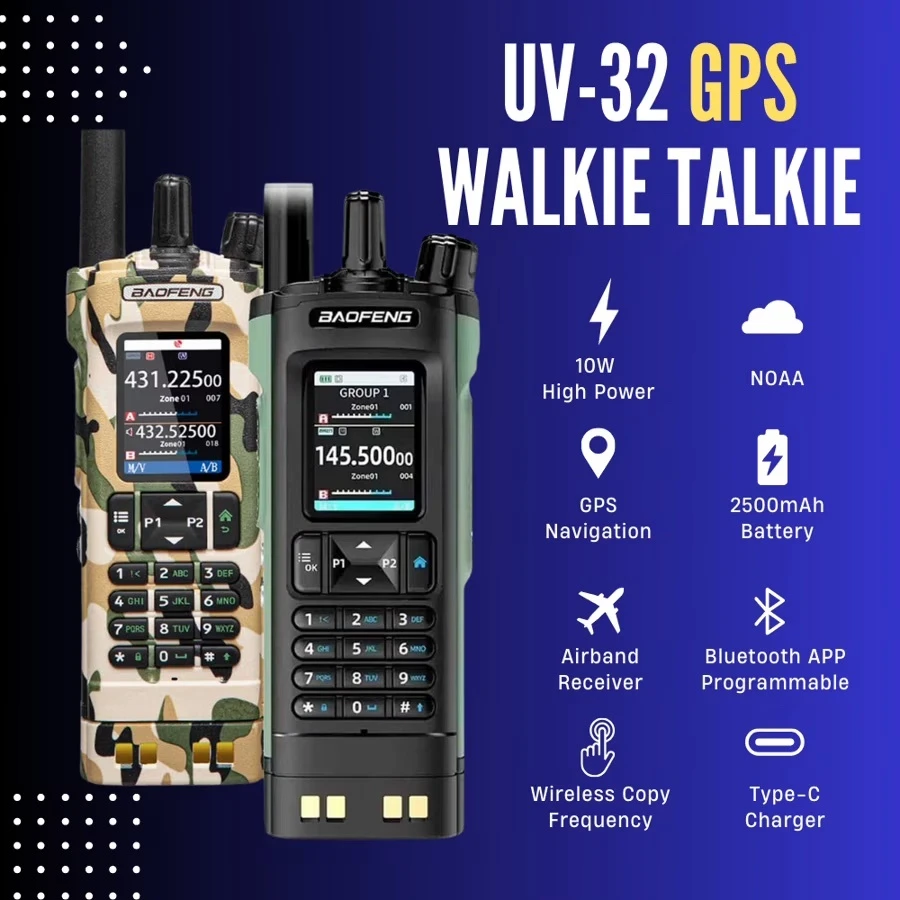
UV-32 GPS
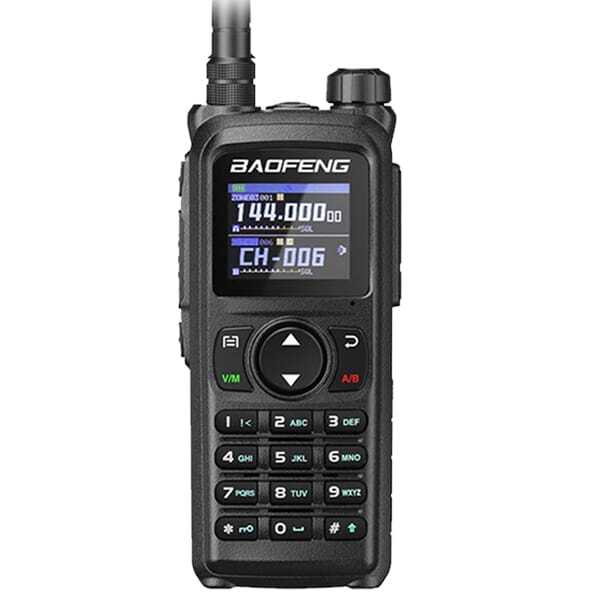
UV-28 Pro GPS
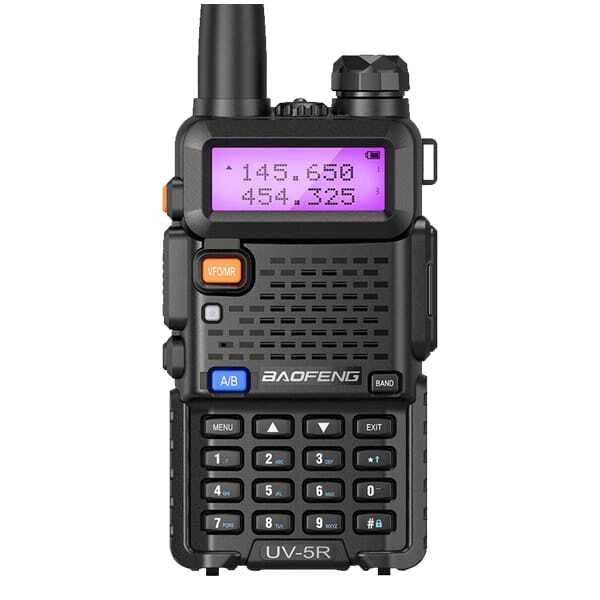
UV-5R Series

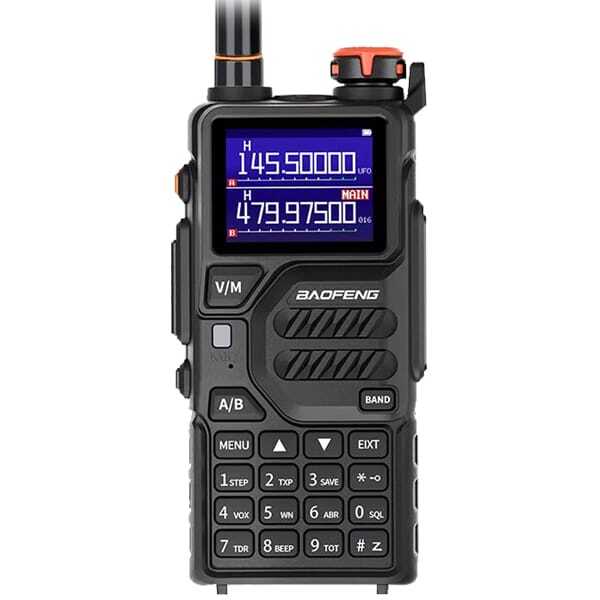
UV-K5 Plus
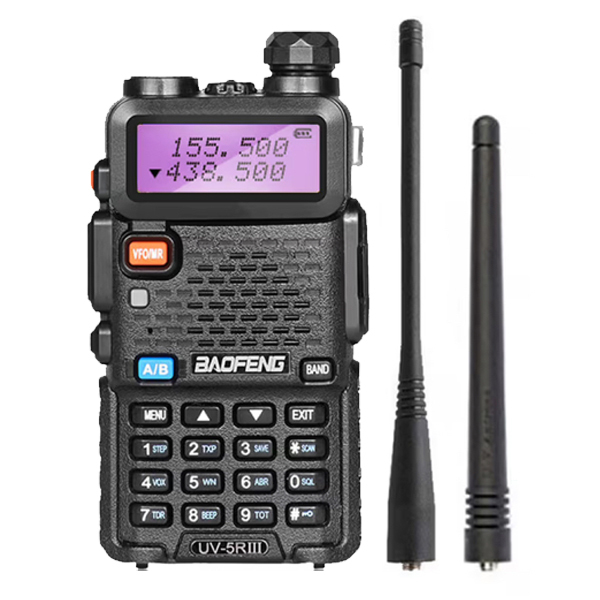
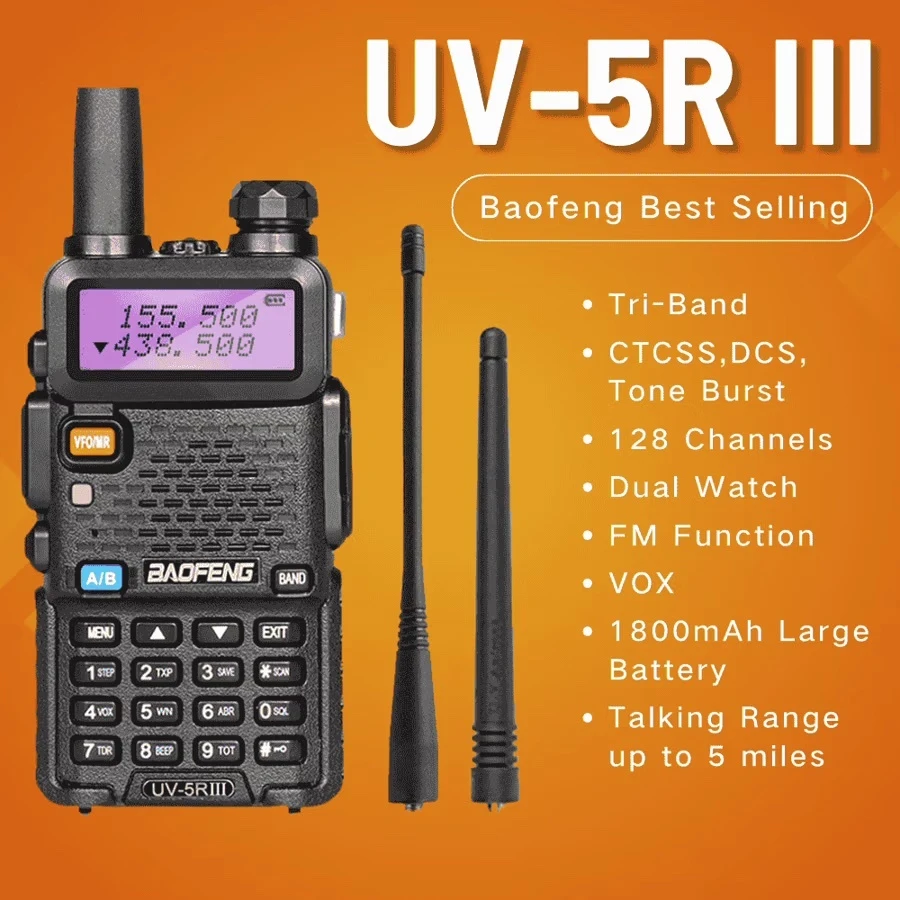
UV-5R III
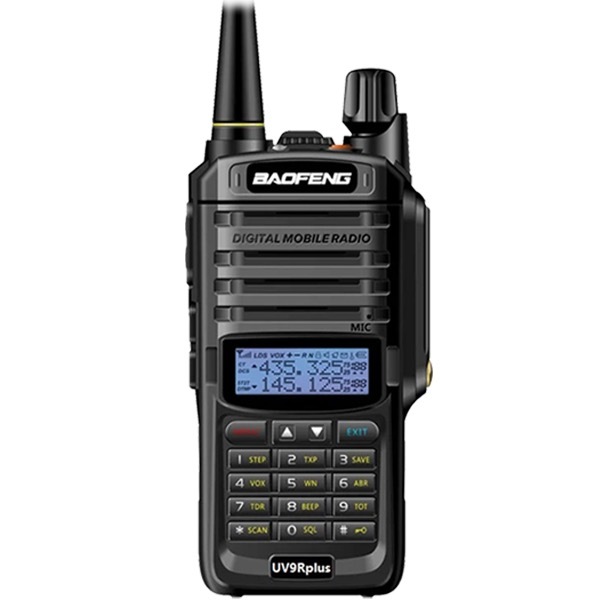
UV-9R Plus
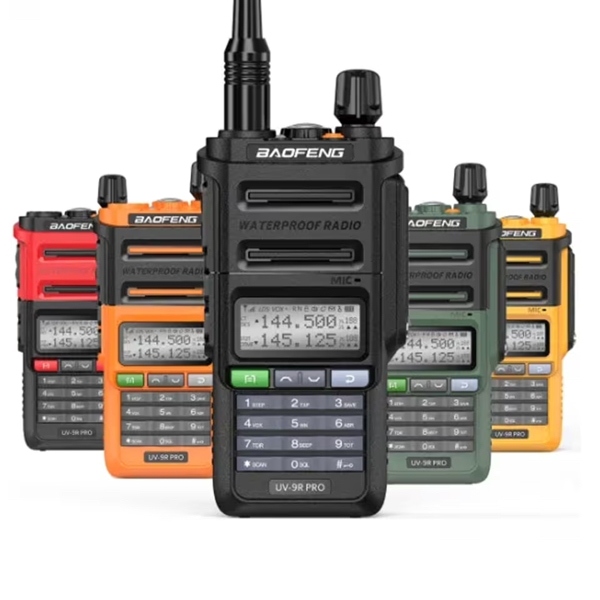
UV-9R Pro
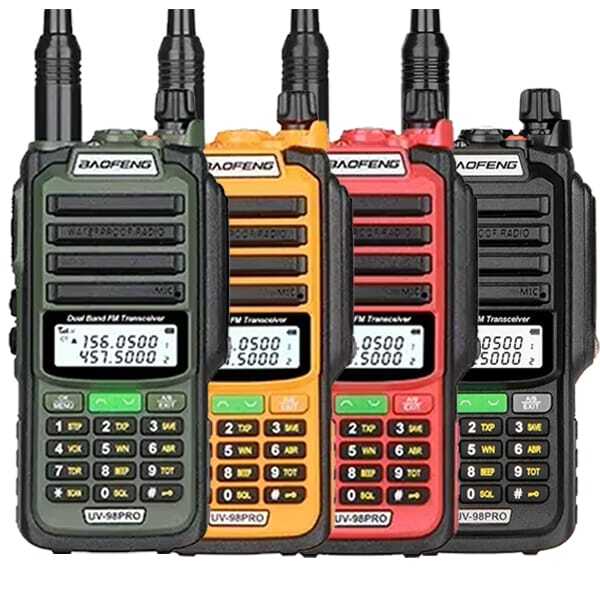
UV-98 Pro
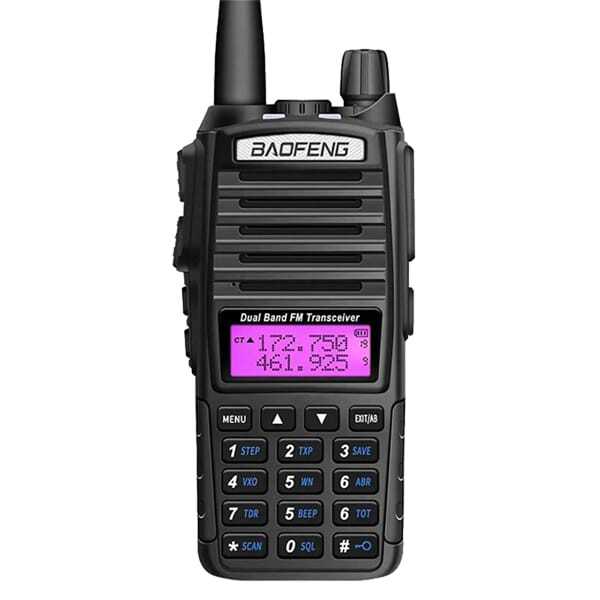
UV-82 / UV-82X3
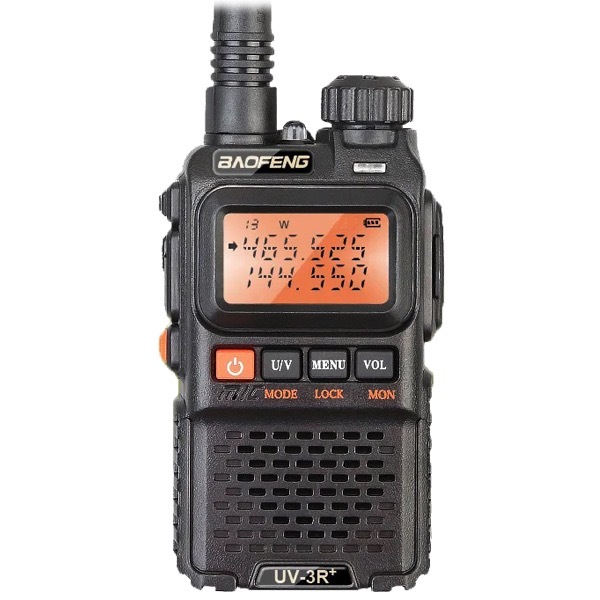
UV-3R+
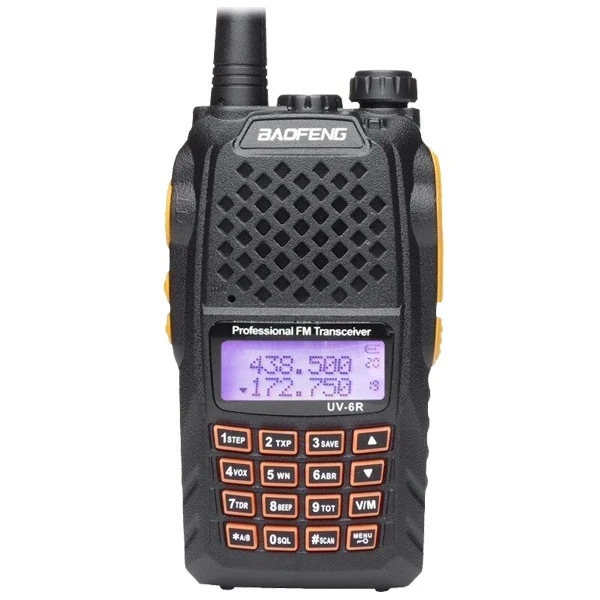
UV-6R
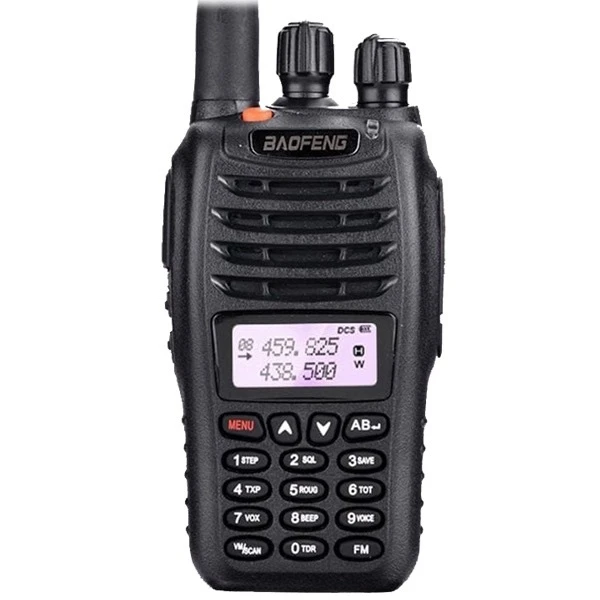
UV-B5

BF-V12D
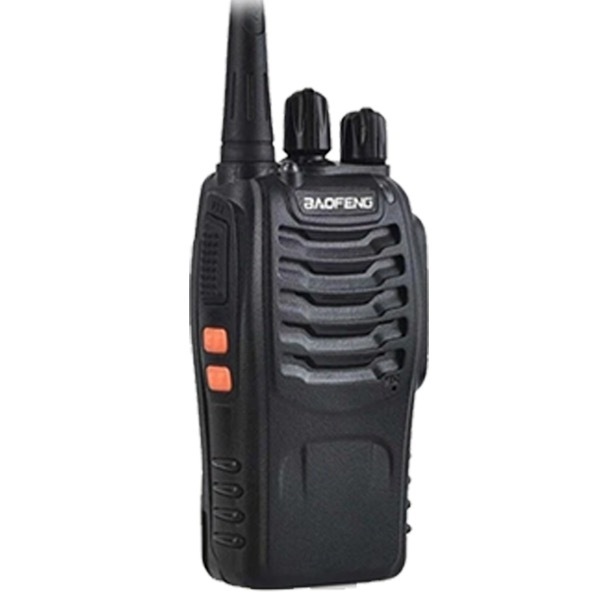
BF-888S
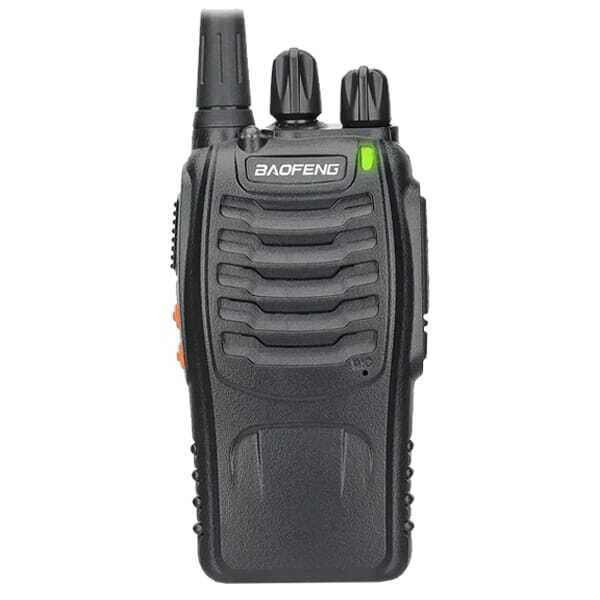
BF-888S PMR446 (BF-88E)
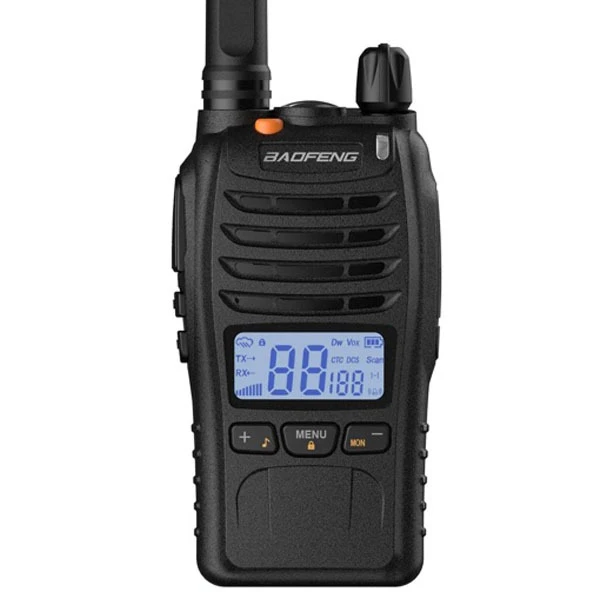
BF-88ST Pro PMR446
BF-W31
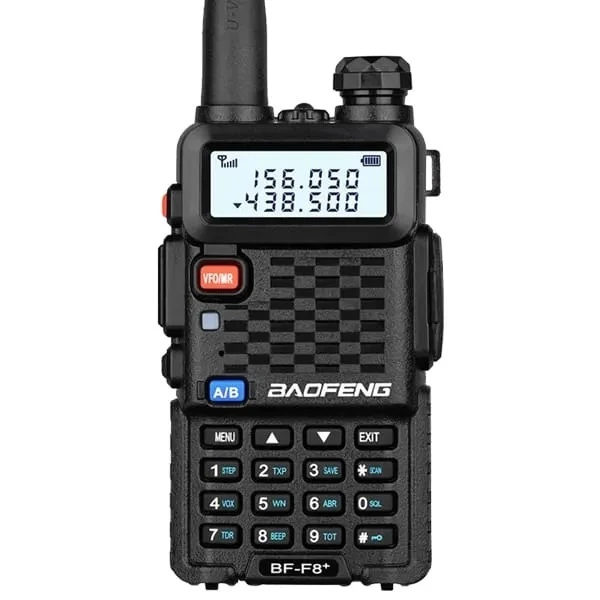
BF-F8+
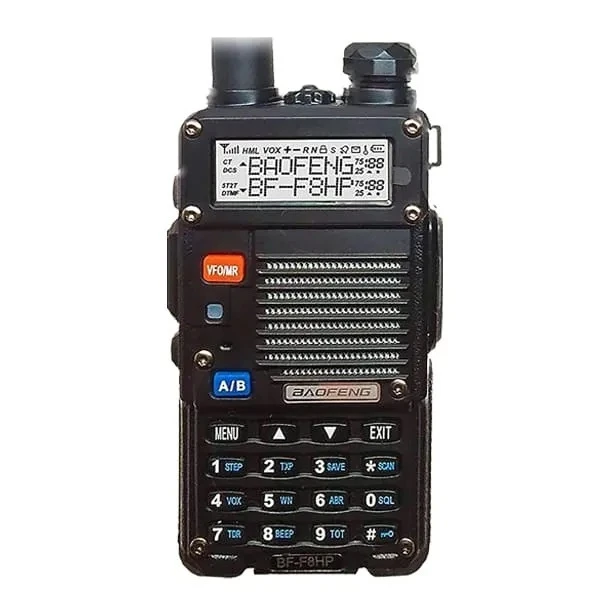
BF-F8HP
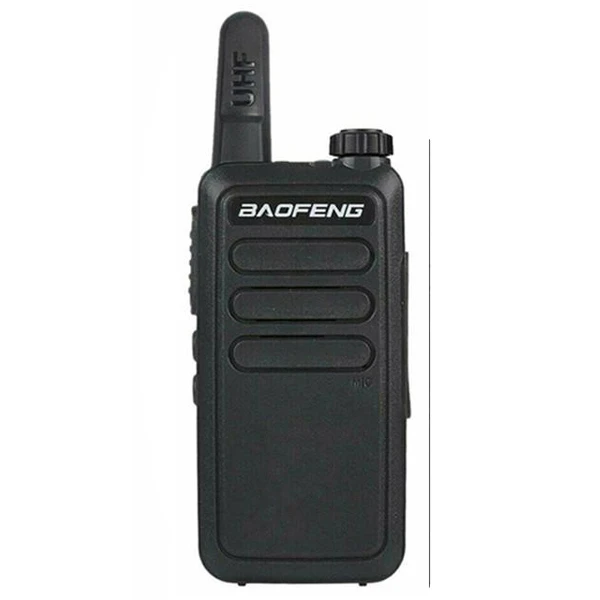
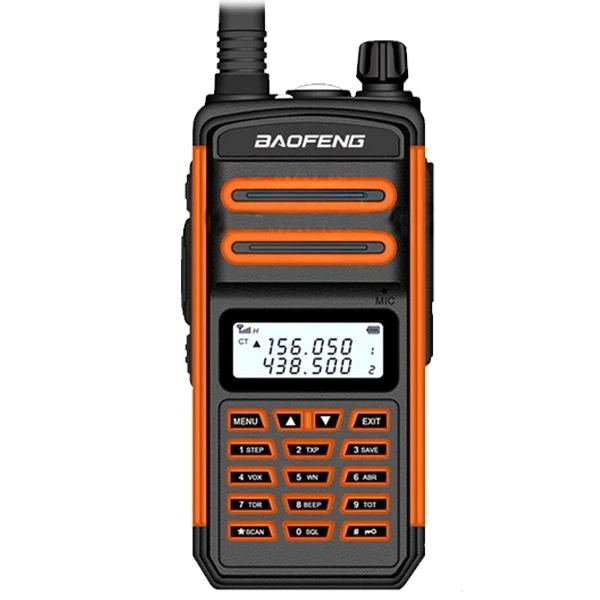
TR-988UV / BF-T60
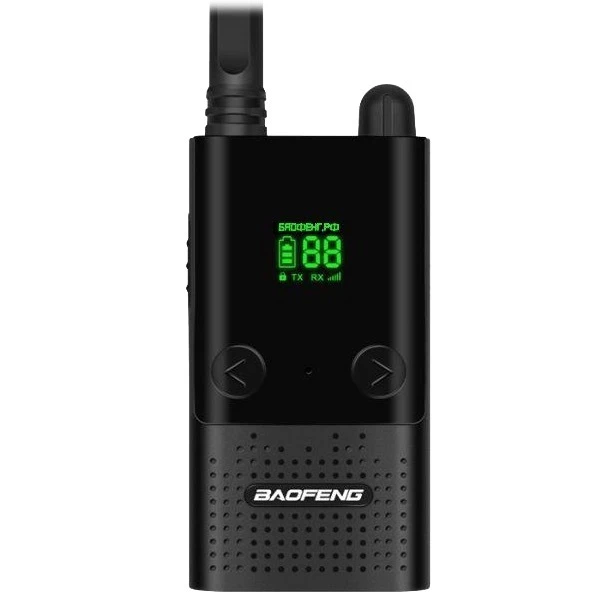
BF-T9
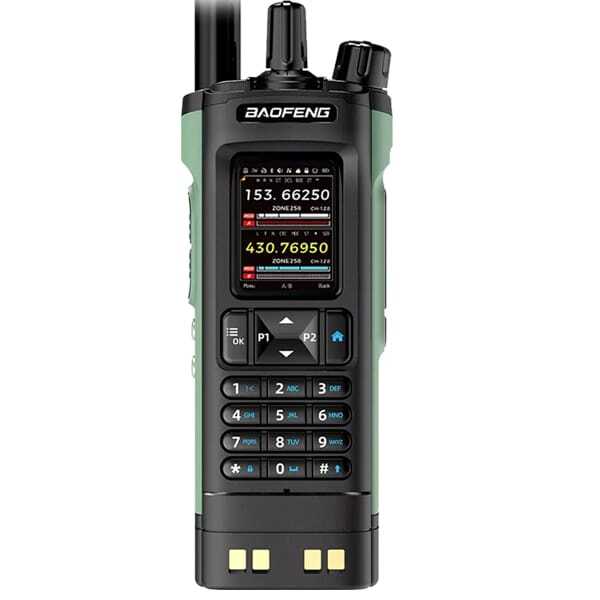
DM-32UV
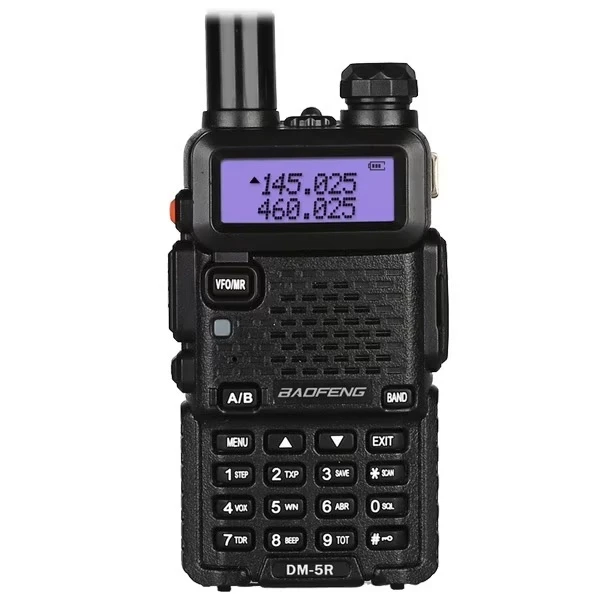
DM-5R Tier II
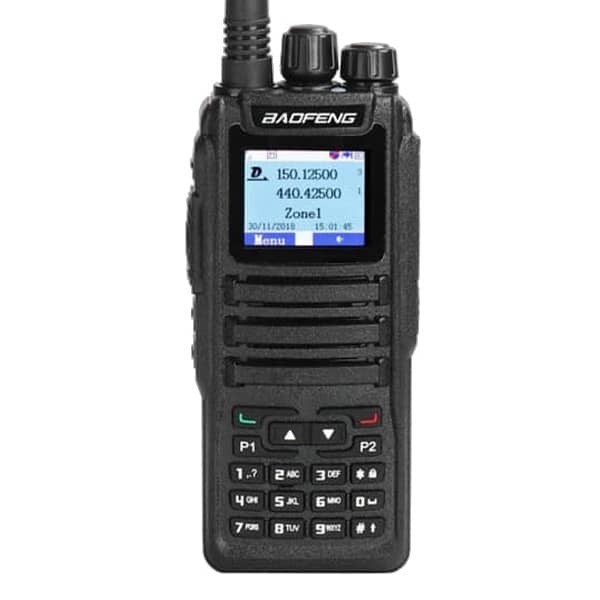
DM-1701
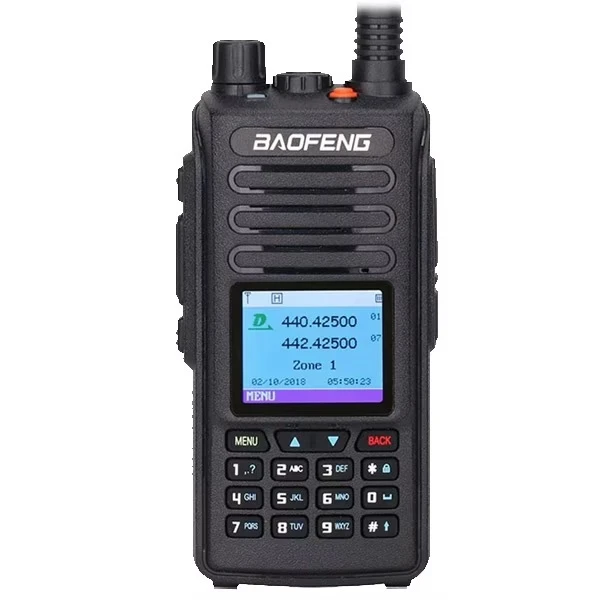
DM-1702 GPS Tier II
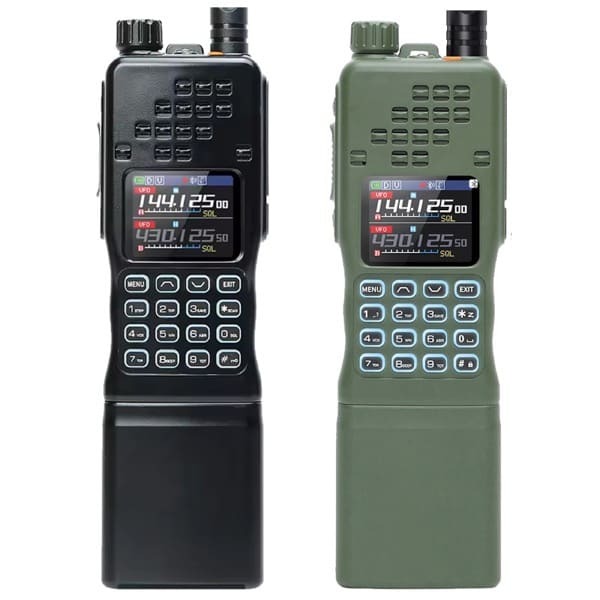
AR-152 Pro GPS
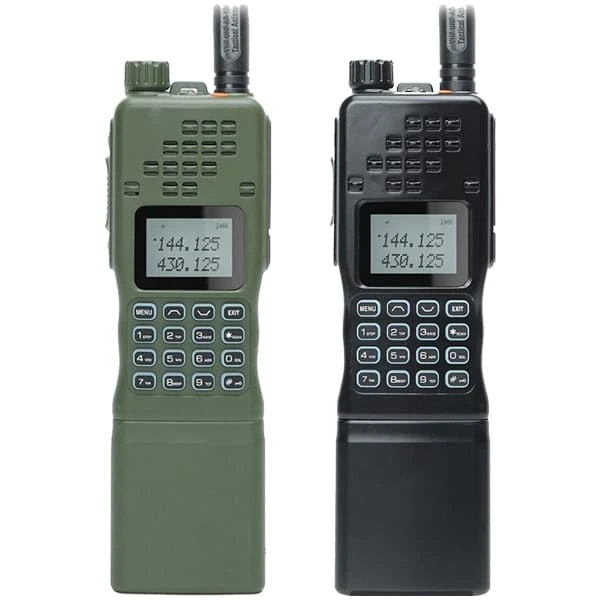
AR-152
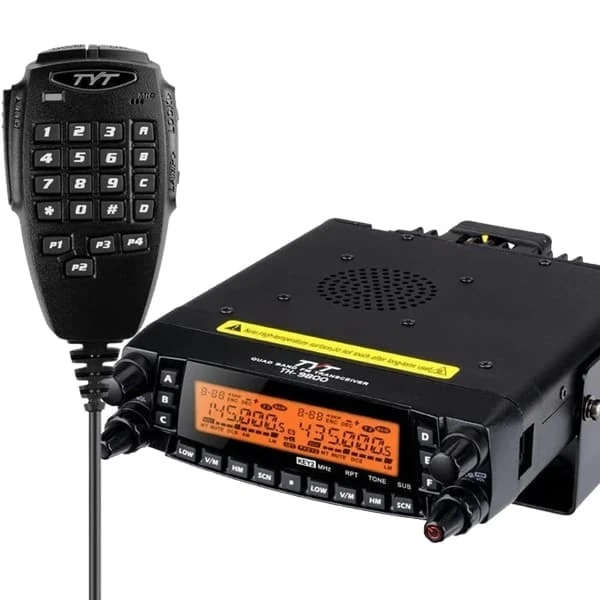
TYT TH-9800
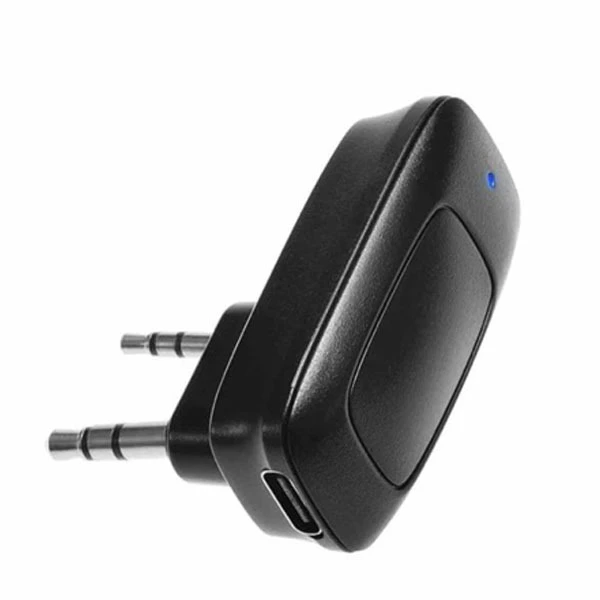
BT-A1D Bluetooth Adapter
Which Baofeng Programming Software Should I Use?
Choose the method that matches both your radio and your computer. Check the software maker's current supported-model list before connecting a radio.
| Option | Best for | Before downloading |
|---|---|---|
| 🌐 CHIRP-next | Supported analogue radios; editing memories; backing up and cloning compatible radios across Windows, macOS or Linux. | Confirm the exact radio appears in CHIRP's current supported-radio list. Use the latest maintained CHIRP-next build only. |
| 🖥️ Factory CPS | A model-specific Baofeng programming tool, especially where CHIRP does not support the radio or a required setting such as GPS or DMR. | Download only the CPS listed for the exact model. Most factory CPS packages are designed for Windows 10 and 11. |
| 📱 OLA Radio App | Wireless programming on supported Bluetooth radios or models used with a compatible BT-A1D Bluetooth adapter. No PC or cable required. | Confirm that the exact model and adapter are supported before pairing. Check the OLA compatibility list above. |
How to Programme Your Baofeng Radio Safely
Follow these steps to ensure your radio is set up correctly. Always confirm the exact model on the radio label before selecting software or a COM port.
1 Get the Right Hardware
Confirm the exact model. Check the label on the radio — not only the product listing or box. Before downloading any files, ensure you have a USB programming cable that supports data transfer, not just charging. Check that the cable connector fits your radio's speaker/mic port securely.
⚠️ Cable tip: Many connection issues are caused by cables that Windows does not recognise. We recommend the Official Baofeng PC03 USB Programming Cable, which uses a signed CH340 driver and is compatible with Windows 10 and Windows 11.
2 Install the Correct USB Cable Driver
Install the appropriate software and, if needed, the driver for the chipset used by your programming cable. Do not plug your cable in yet. First, identify the chipset and install the matching driver.
- Connect the cable to the computer.
- Open Device Manager and expand Ports (COM & LPT).
- Note the device name and COM number. Common cable chipsets include CH340 and Prolific PL2303.
- Install or update only the driver that matches the identified chipset, then reconnect the cable and reopen the programming software.
- Select the same COM number inside CHIRP-next or the factory CPS.
💡 Do not guess the driver: A radio not responding can also be caused by the wrong model selection, a connector that is not fully seated, an occupied COM port, low battery power or a cable that does not contain a data interface.
3 Choose Your Programming Method
Choose the method that matches both your radio and your computer. Check the software maker's current supported-model list before connecting a radio.
- Model-specific — download only the CPS listed for your exact model
- Required for DM series DMR radios
- Required for GPS and model-specific settings not covered by CHIRP
- Designed for Windows 10 and Windows 11
- Free and open-source — best for beginners
- Works on Windows 10, 11 and macOS Big Sur and later
- Confirm your exact radio appears in CHIRP's current supported-radio list before use
- Use the latest maintained CHIRP-next build only
- ⚠️ Legacy CHIRP is no longer maintained — use CHIRP-next
- Wireless Bluetooth programming from your smartphone
- No PC or USB cable required
- Available on iOS and Android
- Confirm that the exact model and adapter are supported before pairing
- Some models need the BT-A1D Adapter
📱 OLA Radio App — Bluetooth Programming Details
✔️ No Adapter Needed (Built-in Bluetooth)
- UV-5R Mini
- UV-32 GPS
- UV-28 Pro GPS
🔌 Requires BT-A1D Bluetooth Adapter
- UV-5R, UV-5RH, UV-5RH Pro, UV-5RM Plus
- BF-888S (UHF & PMR446), UV-K5 Plus
- DM-32UV, AT2, BF-V12D
4 Read, Edit & Write
- Connect the cable firmly, turn the radio on and select the correct COM port, vendor and model.
- Choose Read from Radio first. Save the original image or configuration file as your backup before making any changes.
- Edit only settings you understand and are authorised to use. Do not assume that a programmable frequency is legal to transmit on.
- Choose Write to Radio and keep the cable connected until the transfer finishes.
- Reboot your radio to apply all changes. Test receive and transmit only where permitted.
💡 UK Frequency Reminder: Always ensure any frequencies you transmit on are within your licence permissions. Visit the PMR446 licence-free guide if you need to operate without an Ofcom licence.
Need screenshots and a full walkthrough? Read How to Programme Your Baofeng Radio Using CHIRP or the UV-5R software programming guide.
Baofeng UV-5R Series: CHIRP-next & Factory CPS Step-by-Step
Since the Baofeng UV-5R series share the same Factory CPS software and CHIRP-next supports most UV-5R models, this guide is a helpful reference for: UV-5R Mini, UV-5RH, UV-5RH Pro, UV-5R+/UV-5R+ Plus, UV-5RA/UV-5RA+/UV-5RAX+, UV-5RAX (2M/1.25M), UV-5RE/UV-5RE Plus, GT-3, BF-F8/BF-F8+, BF-F9 and more.
Preparation Before Programming
1. Computer System Requirements
- Operating System: Windows 10 (64-bit) or Windows 11 (64-bit) — Recommended. macOS Big Sur and later supported via CHIRP-next or OLA Radio App.
- Hard Disk Space: At least 200 MB available
- Minimum RAM: 4 GB recommended
2. Programming Cable
- Option A — USB Cable (CH340 / Prolific): Install the correct signed driver before plugging in. Download the matching driver from the links above.
- Option B — FTDI Cable: No driver installation needed on macOS. Works natively.
- Option C — Bluetooth (OLA App): Use the BT-A1D Bluetooth Adapter or a built-in Bluetooth model. No PC required.
🛍 Shop Official PC03 Programming Cable →
3. Software Download & Install
- Download the Factory CPS for your exact model from the download list above, or download CHIRP-next (free).
- Install the software before connecting your radio.
- Confirm your radio appears in the software's supported model list before connecting.
4. Connect Your Walkie-Talkie to the Computer
- Connect the USB end of the programming cable to your computer.
- Connect the other end to your walkie-talkie's speaker/mic port.
- Once both ends are connected, turn on your radio. Ensure it has sufficient battery power during programming.
CHIRP-next Programming Process
1 Open CHIRP-next → Download From Radio
Open CHIRP-next (latest version). Click Download From Radio under the "Radio" menu. This reads and backs up your current radio settings before any changes are made.
2 Select COM Port, Vendor & Model
Select the corresponding cable driver port (COM port). Under Vendor, select Baofeng. Under Model, select your specific model. Click OK to read the radio.
💡 Model Selection Tip: For UV-5RM Plus → select UV-5RM. For UV-K5 Plus → select UV-K5. Do not choose a similar model unless CHIRP's documentation explicitly says so — always match the exact model to avoid errors.
3 Edit Channels in the Memories Tab
You will arrive at the Memories page. Here you can adjust: Channel number, TX Frequency, RX Frequency, CTCSS/DCS sub-tones, High/Low Power, and Wide/Narrow Band settings.
4 Adjust Settings
Switch to the Settings tab to adjust global radio parameters: VOX Function, Squelch level, Backlight, DTMF, FM Radio, Voice Prompt, Scanning mode, VFO Mode and more.
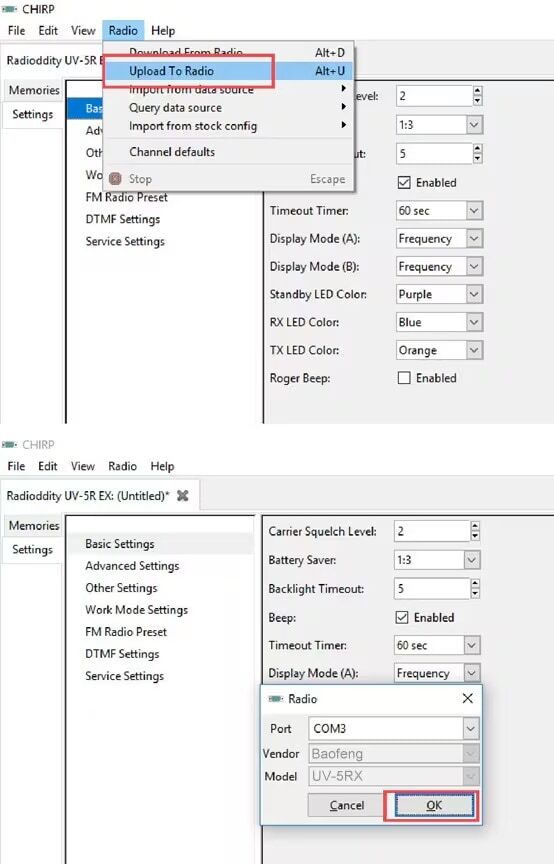
5 Upload to Radio
Once all edits are complete, click Upload To Radio under the "Radio" menu. Keep the cable connected until the transfer finishes, then reboot your radio to apply all changes.
✔️ Tip: Save your CHIRP configuration file (.img) to your computer as a backup. You can reload it later or clone it to another compatible radio of the same model.
UV-5R Factory CPS Programming Process
1 Open Software & Select COM Port
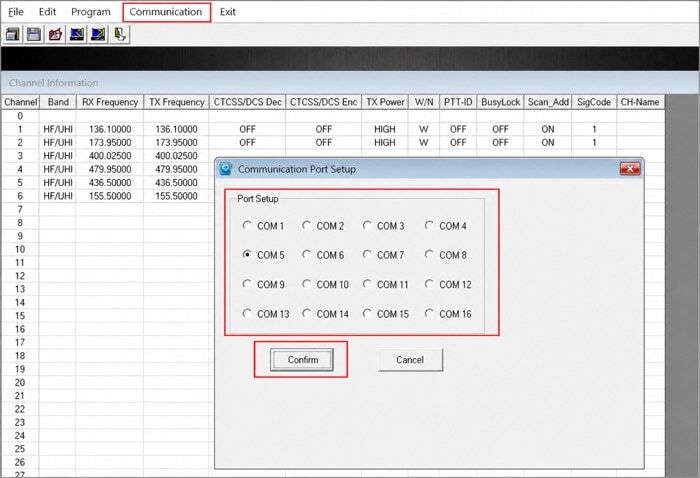
Download and open the Factory CPS software for your exact model. Click "Communication" and choose your COM Port, then click Confirm.
2 Read Data from Radio
Click the Read button, then click Read again in the pop-up dialogue. Save this file as your backup before making any changes. Do not disconnect the cable during this step.
3 Edit Channel Parameters
You will arrive at the Channel Parameters page. Adjust: Channel number, TX/RX Frequency, CTCSS/DCS tones, High/Low Power, and Wide/Narrow Band settings as required.
4 Configure Optional Features
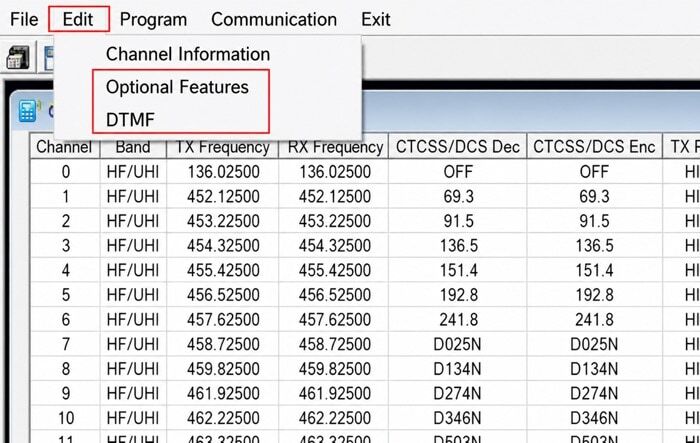
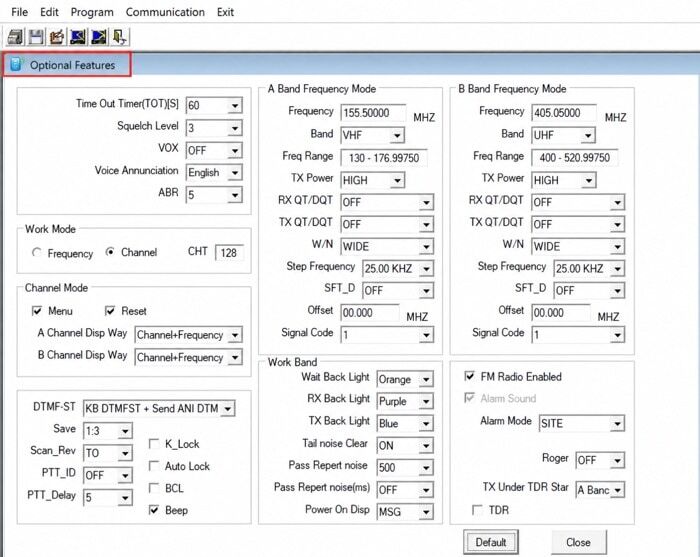
Click "Edit" → "Optional Features". A pop-up window will appear where you can adjust: VOX Function, Squelch, Backlight, DTMF, FM Radio, Voice Prompt, Scanning, and VFO Mode.
5 Configure DTMF (Optional)
To configure DTMF functions, click "Edit" → "DTMF" to open the DTMF configuration page.

6 Write Settings to Radio
Click the Write button, then click Write again on the confirmation pop-up. Keep the cable connected until the transfer finishes, then reboot your radio to apply all changes.

Troubleshooting: Radio Not Detected or Not Responding
Work through the relevant item below before reinstalling software or changing cables.
- No COM port appears in Device Manager
Reconnect the cable, try a different USB port, and open Device Manager. Look for an unknown device or a driver warning under Other devices. If nothing appears, the cable may not contain a data interface — not all cables marked "programming" support data transfer.
- COM port exists but the radio does not respond
Close any other software that may be using the port. Re-seat the radio connector firmly. Raise the radio volume if the model requires audio squelch open to communicate. Confirm the exact vendor and model selection in CHIRP or CPS — do not choose a similar model by guessing.
- CHIRP does not list my model
Do not choose a similar model unless CHIRP's own documentation explicitly instructs you to do so. Use the model-specific CPS from the download list on this page, or contact Baofeng UK support for guidance.
- Upload is refused after a successful read
Reopen the saved backup file. Confirm that the image was read from this same radio. Avoid cross-loading files between different models or different firmware revisions — channel data is model-specific and cross-loading can corrupt radio settings.
- Antivirus warning on a CPS file
Do not disable your security software simply to force an installation. Verify the file was downloaded directly from baofengradio.co.uk and not from a third-party site. Check the file against any checksum provided. If you are uncertain about the file's integrity, contact Baofeng UK support before opening it.
🇬🇧 UK Frequency & Licensing Notice
In the UK, PMR446 can be used without an individual Ofcom licence only when the equipment and operation meet the applicable licence-exemption requirements.
A programmable radio is not automatically PMR446-compliant simply because it can be set to a PMR446 frequency. The equipment itself must meet the applicable type-approval and technical requirements.
Other amateur, business and assigned frequencies may require the appropriate Ofcom licence and operating conditions. If you are unsure, use a UK-compliant licence-free PMR446 radio as supplied, or check the current Ofcom guidance before transmitting.
Frequently Asked Questions & Troubleshooting
CHIRP is free, open-source software. Baofeng UK also provides model-specific CPS download links where available. Check the file description, supported operating system and model before installing.
CPS means Customer Programming Software. It is the model-specific program used to read, edit and write supported channel and radio settings. A CPS package for one model may not work with another.
Start by checking the exact UV-5R variant against CHIRP's current supported-radio list. If supported, use the latest CHIRP-next build; otherwise use the factory CPS provided for that exact model. Always read from the radio and save a backup first.
Use the BF-888S download card on this page and confirm whether your label identifies BF-888S UHF or the PMR446 variant sold as BF-88E. Do not assume that files or configurations are interchangeable between the two variants.
The most common cause is a missing or outdated USB driver. Follow these steps:
- Connect the cable and open Device Manager.
- Expand Ports (COM & LPT) and identify the chipset (CH340 or Prolific PL2303).
- Download and install the matching signed driver from the links on this page.
- Reconnect the cable and select the correct COM port in your software.
If no COM port appears at all, try a different USB port. If a Prolific error appears, the cable chipset may not be supported under current Windows 11 driver signing rules. Upgrading to the Official PC03 Programming Cable (CH340 chipset) resolves most Windows 11 issues.
For most users, we recommend CHIRP-next — confirm your exact radio appears in CHIRP's supported-radio list first.
- ✔️ CHIRP-next — best for beginners, cloning channels, UK repeater data, macOS and Linux support.
- ✔️ Factory CPS — for model-specific unlocking, GPS settings (UV-5RH Pro, UV-32, UV-28 Pro), and DM series DMR programming. Windows only.
- ✔️ OLA Radio App — for Bluetooth-enabled models or with the BT-A1D adapter. No PC needed.
The maintained CHIRP-next project currently supports Windows 10 and later, macOS Big Sur and later, and modern Linux distributions. Check the CHIRP-next download page for the latest system requirements before installation.
Factory CPS is designed for Windows 10 and Windows 11 only. Mac users should use CHIRP-next or the OLA Radio App.
Yes. The free OLA Radio App allows wireless Bluetooth programming — no PC or cable required.
- No adapter needed (built-in Bluetooth): UV-5R Mini, UV-32 GPS, UV-28 Pro GPS.
- Requires BT-A1D Adapter: UV-5R, UV-5RH, UV-5RH Pro, UV-5RM Plus, BF-888S (UHF & PMR446), UV-K5 Plus, DM-32UV, AT2, UV-12D.
These are two different USB-to-serial chipsets used in programming cables:
- Prolific PL2303 — common in older cables. Windows 11 has stricter driver signing requirements; some Prolific-based cables may not work reliably on Windows 11.
- CH340 — used in newer cables including the official Baofeng PC03. Generally more compatible with current Windows 10 and 11 driver signing requirements.
Check Device Manager after connecting your cable to identify which chipset your cable uses, then install the correct driver.
Factory CPS files are older executables from a publisher not registered in Windows security databases, which can trigger false-positive warnings. Do not disable your security software simply to force an installation.
Instead:
- Verify the file was downloaded directly from baofengradio.co.uk and not from a third-party site.
- Check the file against the checksum or verified date shown on the download page where available.
- If you are uncertain about the file's integrity, contact Baofeng UK support before opening it.
No. Programming software changes supported channel and menu settings. Firmware is the software stored inside the radio itself. Never install firmware intended for another model or hardware revision. Only use a verified firmware file and instructions specifically provided for your exact radio.
Do not assume CHIRP support for DMR radios. Check CHIRP's live supported-radio list for the exact model. If it is not listed, use the model-specific DMR CPS provided in the download list on this page.
No. Legal licence-exempt use depends on the equipment and operation meeting the applicable UK requirements — not merely on entering a PMR446 frequency. A programmable radio is not automatically PMR446-compliant simply because it can be set to a PMR446 frequency. Use a compliant PMR446 radio as supplied and follow current Ofcom guidance before transmitting.
Yes, for transmitting on most frequencies. Most Baofeng radios can transmit on frequencies requiring an Ofcom Amateur Radio Licence. It is illegal in the UK to transmit on these bands without a valid licence. You can legally listen (receive only) on any frequency without a licence. For licence-free operation, use PMR446 licence-free radios and frequencies only.
Owning a Baofeng radio is perfectly legal in the UK. Transmitting on licensed frequencies (such as amateur VHF/UHF bands) requires a valid Ofcom Amateur Radio Licence. For licence-free legal operation, use PMR446-approved radios and channels only. Always ensure full compliance with current Ofcom regulations.
Contact Baofeng UK support with a clear photo of the model label, your computer operating system, cable type or chipset, and the exact error message. This helps support identify the correct file without guessing.
🔗 Need a Cable, Adapter or Setup Guide?
Shop Top Deals