
31st Jul 2026
PoC Radio Setup Guide: How to Set Up the Alervites PoC-AT1 in 7 Steps
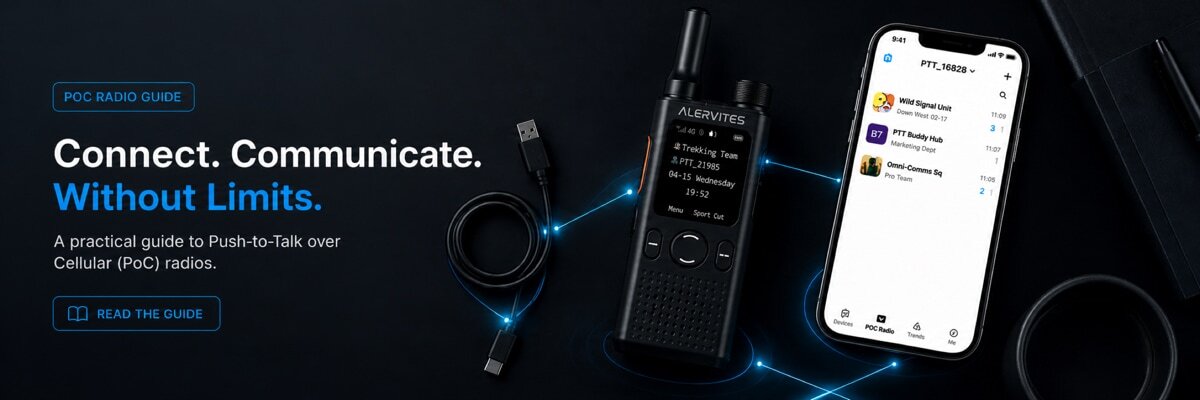
This guide was written and reviewed by the Baofeng UK technical team — UK-based radio communications specialists with over 10 years of hands-on experience. All PoC network information has been verified against current Alervites PoC-AT1 specifications and the Ola Radio platform.
The Alervites PoC-AT1 is one of the easiest professional radios to set up — no programming cables, no PC software, no radio licence required.
Push-to-Talk over Cellular (PoC) is still new to many UK users, but the technology is simple once you understand the basics. This guide covers every step from unboxing to making your first team PTT call — including how to download the app, bind your device, create a group, and invite new members.
Unlike traditional walkie-talkies that require programming cables and PC software, the PoC-AT1 is managed entirely through the Ola Radio app on your smartphone. The SIM card is pre-installed and pre-activated. Power on, download the app, and your radio is ready to communicate across the UK and Europe in minutes.
⚡ PoC-AT1 setup at a glance
- ✓ No radio licence required: Operates over 4G LTE — not licensed radio frequencies
- ✓ Pre-installed SIM card: 1-year free data plan included — just power on
- ✓ No programming cables: Everything managed via Ola Radio app on iOS or Android
- ✓ Unlimited range: Works anywhere with 4G LTE signal — UK and Europe
- ✓ 7 steps to first call: Unbox → Charge → App → IMEI → Bind → Group → PTT
- ✓ EU Version only: Compatible with UK and all European countries
📋 Table of Contents
- PoC vs traditional walkie-talkie — key differences
- Step 1: Unboxing the PoC-AT1
- Step 2: Charge and power on
- Step 3: Download the Ola Radio app
- Step 4: Find the IMEI code on the radio
- Step 5: Bind the device to the app
- Step 6: Create a group and start talking
- Step 7: Invite new members
- Advanced features
- Quick setup checklist
- Limitations to know before you buy
- Frequently asked questions
PoC vs traditional walkie-talkie — key differences
Before setting up the PoC-AT1, it helps to understand why it works differently from a standard handheld radio.
A traditional walkie-talkie transmits voice using VHF or UHF radio waves. Range is limited by terrain, buildings, and antenna height. In a dense UK city, communication may degrade after a few hundred metres. A PoC radio converts voice into encrypted data and routes it through the 4G LTE mobile network — the same infrastructure your smartphone uses. This removes all distance limitations.
| Feature | Traditional Radio | PoC-AT1 |
|---|---|---|
| Range | Limited by terrain & distance | Unlimited — wherever LTE exists |
| Licence Required | Often yes (UK Ham or Business) | No — uses cellular network |
| Setup Method | PC software + programming cable | Smartphone app — no cable |
| Encryption | Basic CTCSS/DCS tones | Full digital LTE encryption |
| Monthly Cost | Zero (after purchase) | Zero — lifetime free data |
| Works Off-Grid | Yes — independent of network | No — requires LTE signal |
▶ Expert note: PoC and traditional radios are complementary technologies, not replacements for each other. For everyday UK team operations where LTE coverage is available, PoC is easier, more flexible, and more secure. For remote or off-grid scenarios, pair PoC with a traditional backup radio.
Unboxing the Alervites PoC-AT1
Check all contents before powering on
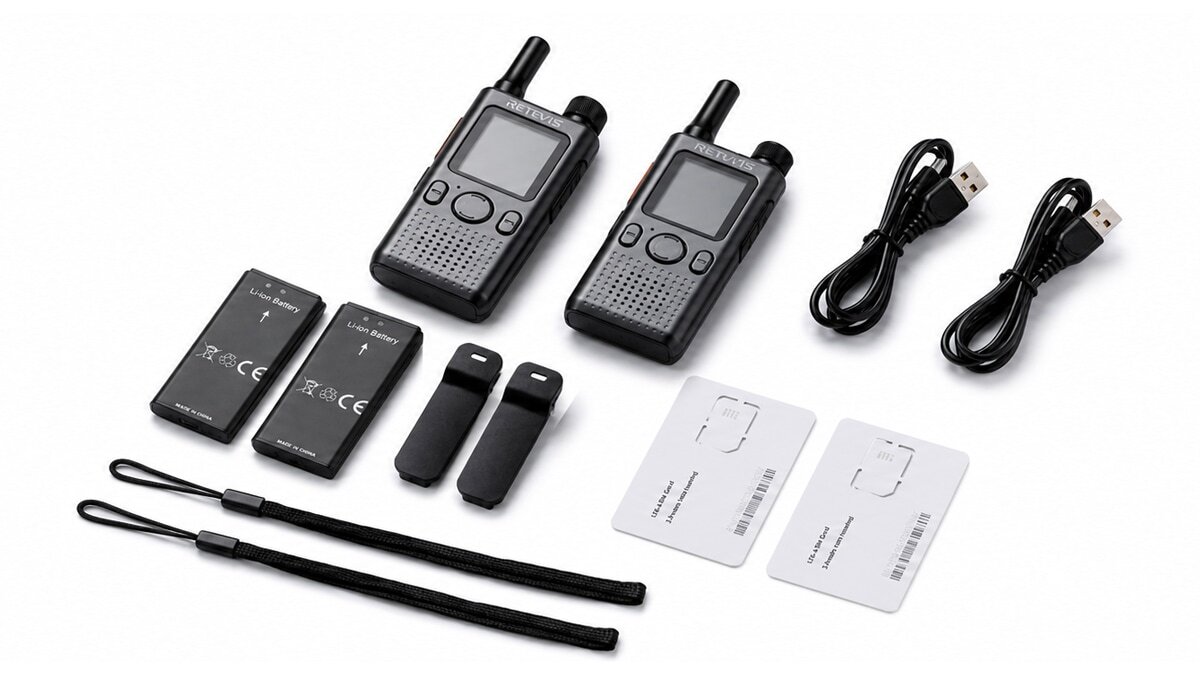
Check your box contains all of the following items:
- PoC-AT1 Radio Body — 1.7-inch screen, PTT button, Group Knob, side navigation buttons
- Battery (2200mAh) — pre-fitted inside the radio
- Pre-Installed SIM Card — already inserted, 1-year data plan included
- USB-C Charging Cable
- Belt Clip
- Wrist Strap
- User Manual — contains the Ola Radio app download QR code
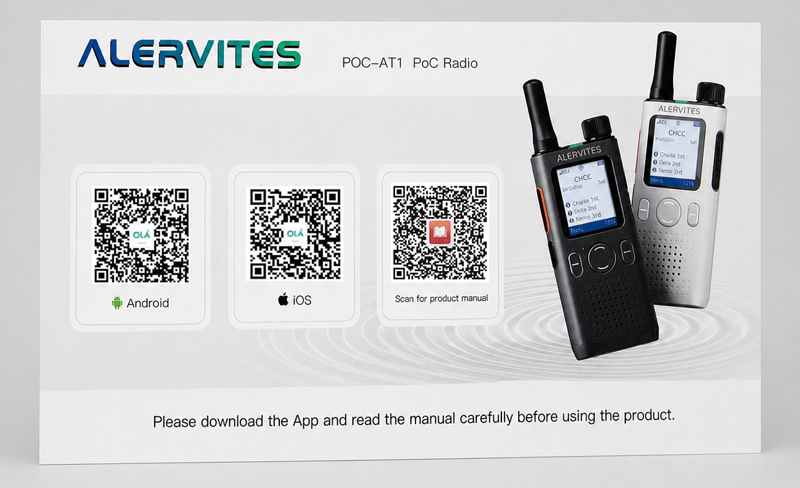
⚠ Important: The SIM card is pre-installed. Do not remove or replace it. It is paired specifically to this unit and the Ola Radio platform. Removing it will disrupt activation.
Charge and Power On
USB-C charging — wait for the 4G icon on screen before proceeding
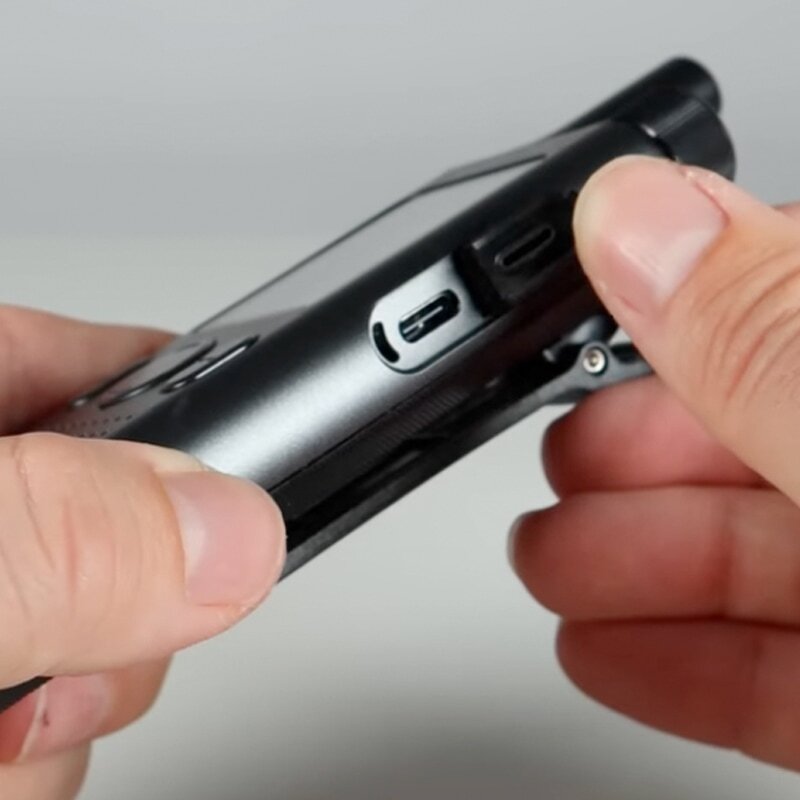
USB-C charging port at the bottom of the radio
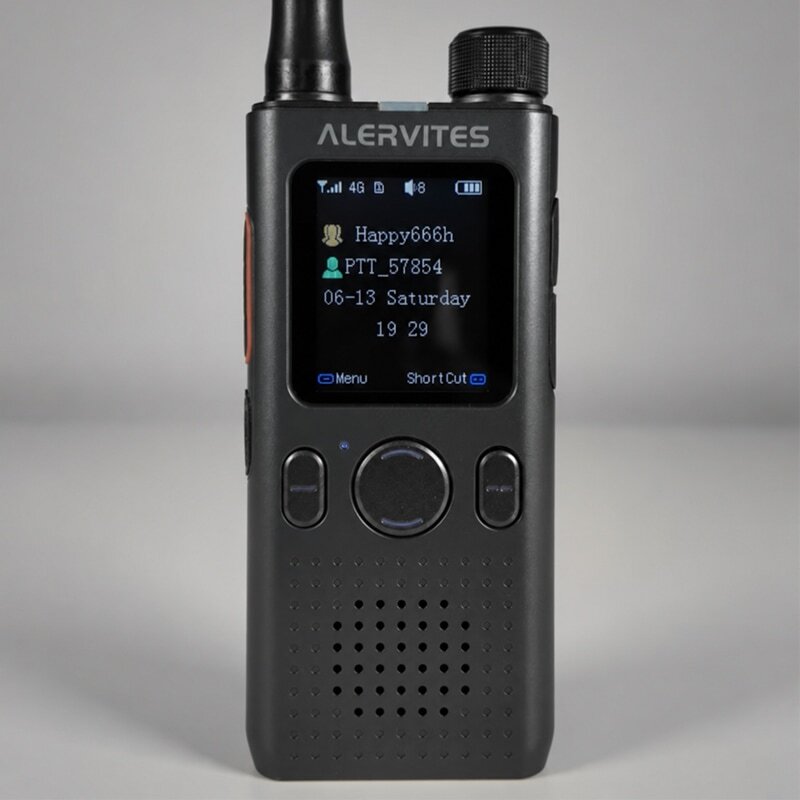
The 4G icon on screen confirms the radio is connected to the network
- Connect the included USB-C cable to the port at the bottom of the radio.
- Connect to a USB power source — phone charger, power bank, or laptop.
- Once charged, long press the power button on the top to power on.
- The radio will boot and automatically connect to the 4G LTE network via the pre-installed SIM.
- When the 4G icon appears on screen, the radio is online and ready to configure.
✓ No SIM setup needed: The SIM is pre-installed and pre-activated. Simply power on — the radio connects automatically. No APN settings, no activation codes.
Download the Ola Radio App
iOS and Android — free to download and register
The Ola Radio app is the control centre for your PoC-AT1. Use it to bind devices, create groups, invite members, and manage your entire team from one phone.
- Scan the QR code in your user manual box — it links directly to the correct app.
- Or download directly using the buttons below:
- Register a free account using your mobile number or email address.
- Log in — you are now ready to bind your PoC-AT1.
Find the IMEI Code on the Radio
Menu → About — keep screen visible for scanning
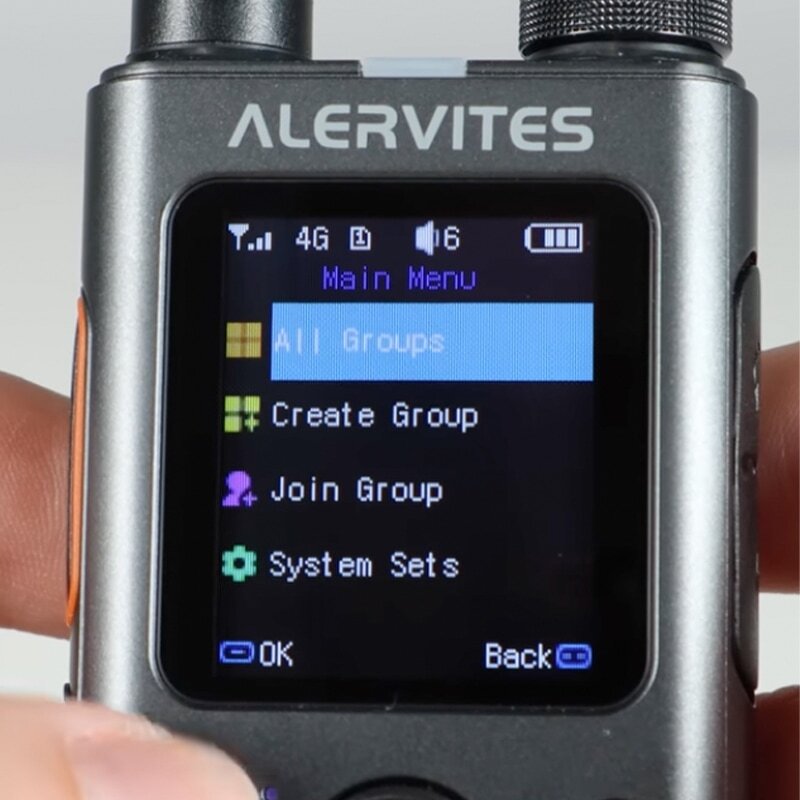
① Navigate to the main menu
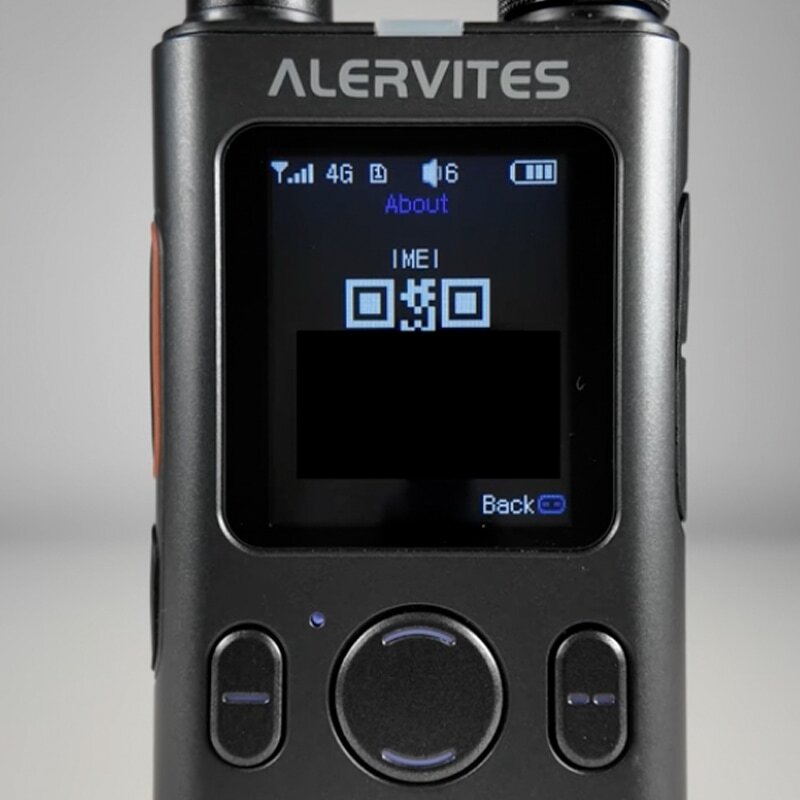
② Select "About" to display the IMEI code
- Navigate to the main menu on the PoC-AT1 using the side navigation buttons.
- Select "About" from the menu options.
- The screen displays the device's IMEI number — a unique 15-digit identifier.
- Keep this screen visible — you will scan it with your phone in Step 5.
Bind the Device to the Ola Radio App
Scan IMEI with phone camera — done once per device
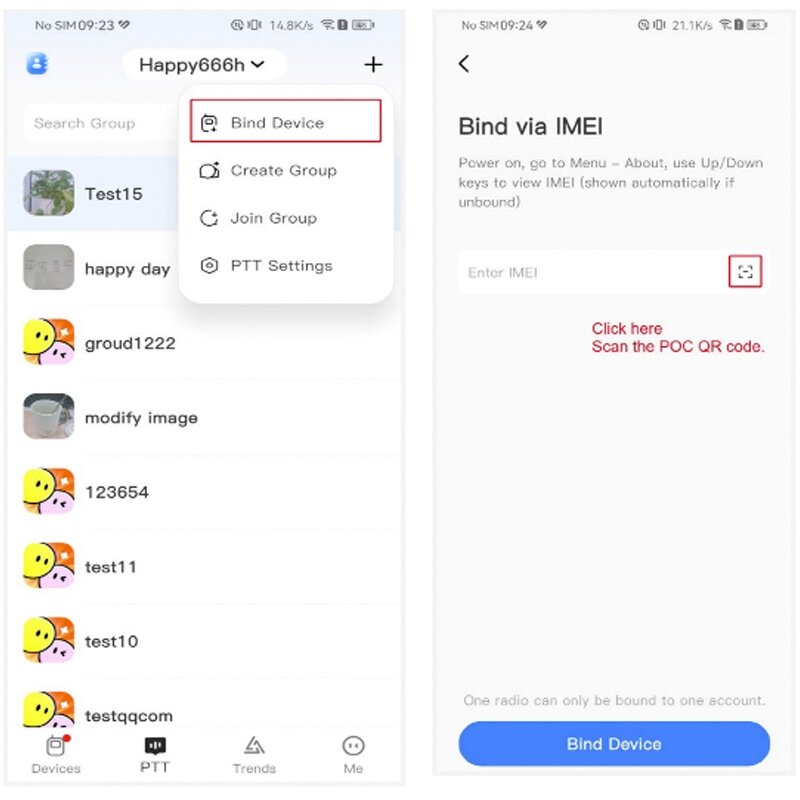
① Tap "Bind Device" in the app
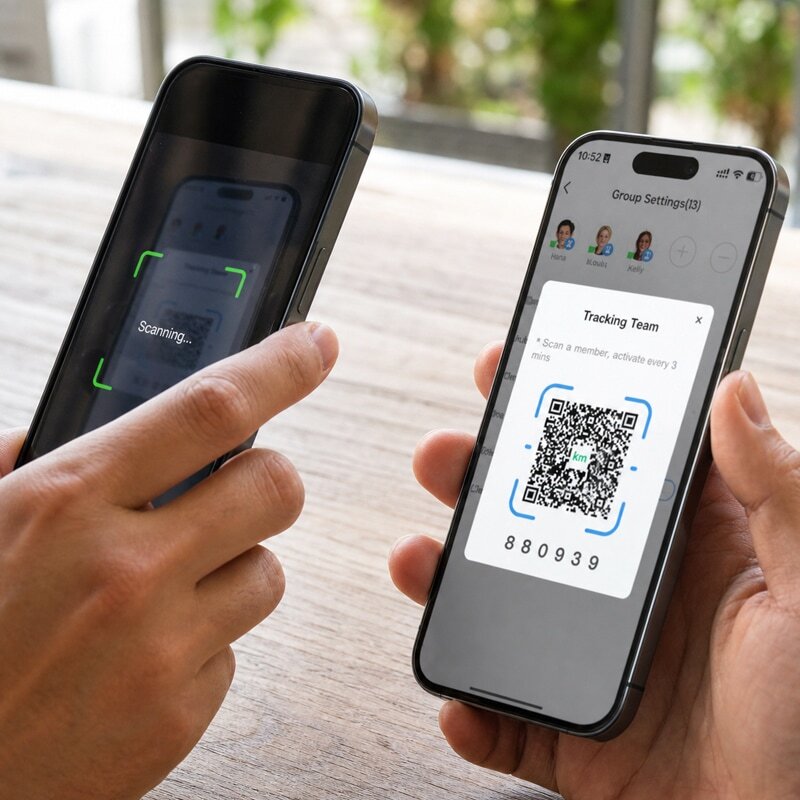
② Scan the IMEI displayed on the radio screen
- Open the Ola Radio app and tap "Bind Device".
- The app opens your phone camera — point it at the IMEI code on the radio screen.
- The app scans and recognises the IMEI automatically. The device is now linked to your account.
- Optional: Give the device a custom name such as "Unit 1", "Warehouse", or "Security A".
✓ Multiple radios: Repeat Steps 4 and 5 for each additional PoC-AT1. All devices are managed from the same Ola Radio account — no limit on the number of devices you can bind.
Create a Group and Start Talking
Up to 1,000 members per group — select group on radio then press PTT
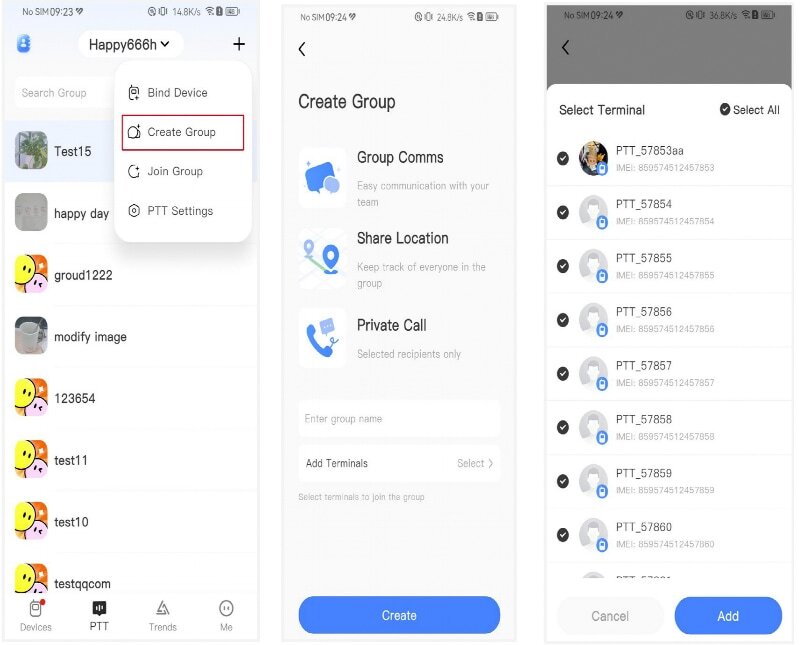
①②③ Tap Create Group → Name it → Add devices

Group created — all bound devices visible in the member list
- In the Ola Radio app, tap "Create Group".
- Name your group — e.g. "Warehouse Team", "Security London", "Site A".
- Add your bound devices from the device list.
- Tap Confirm — the group is created and all radios are connected.
- On the radio, select your group using the Group Knob or on-screen menu.
- Press and hold PTT — speak to transmit. Release to receive.
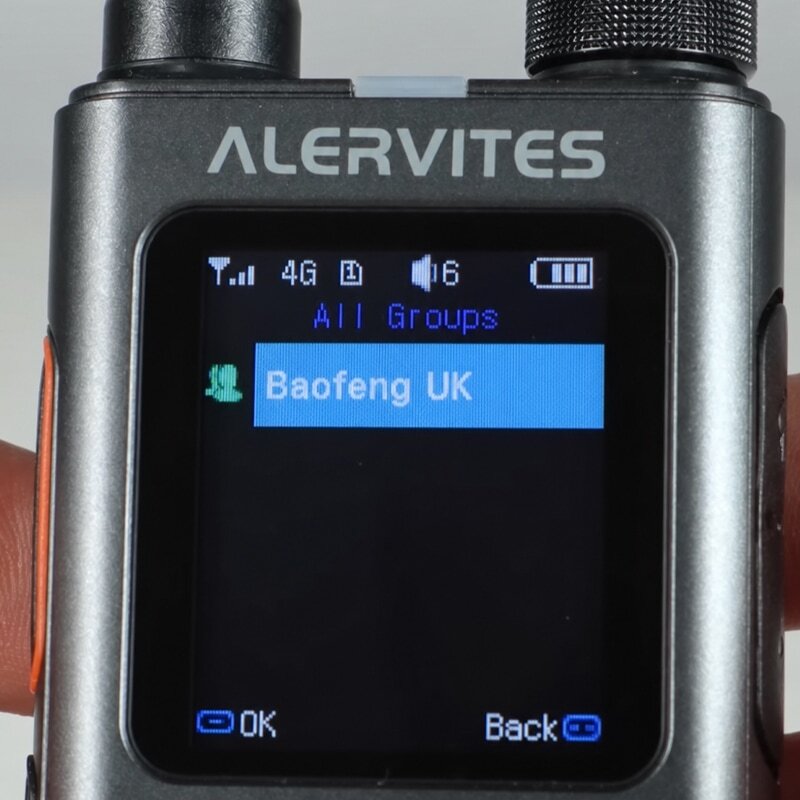
Group selected and displayed on the radio screen
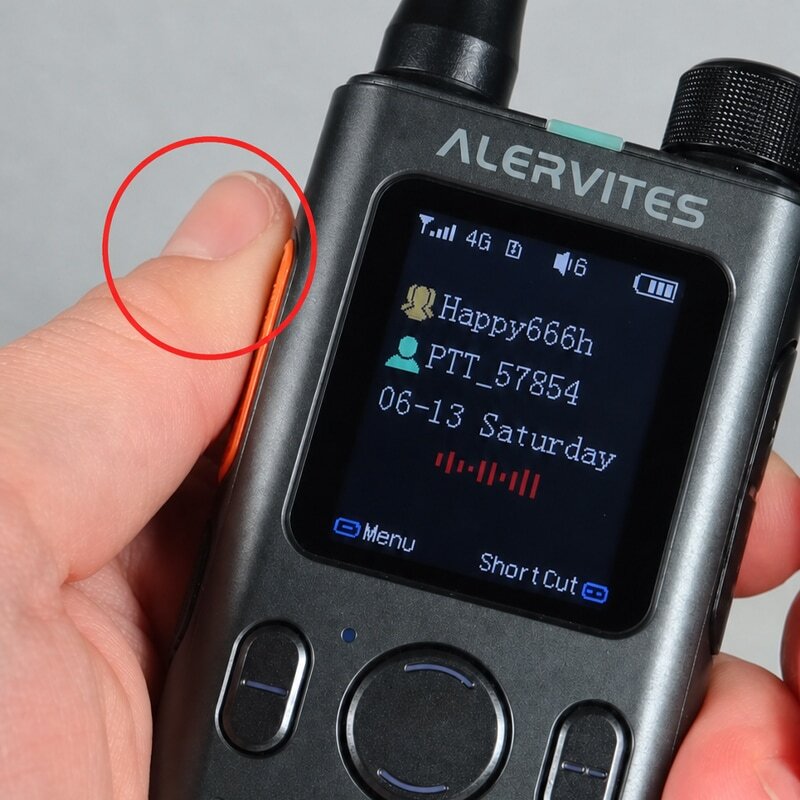
Press and hold the PTT button to transmit to the group
Invite New Members to Your Group
QR code or Share Code — no dealer, no reprogramming
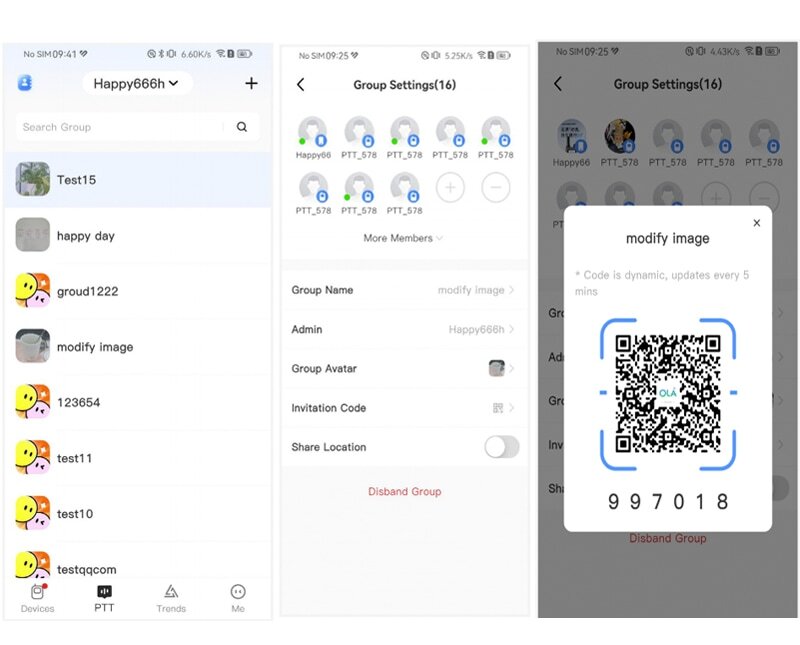
Method 1: Generate & share QR Code
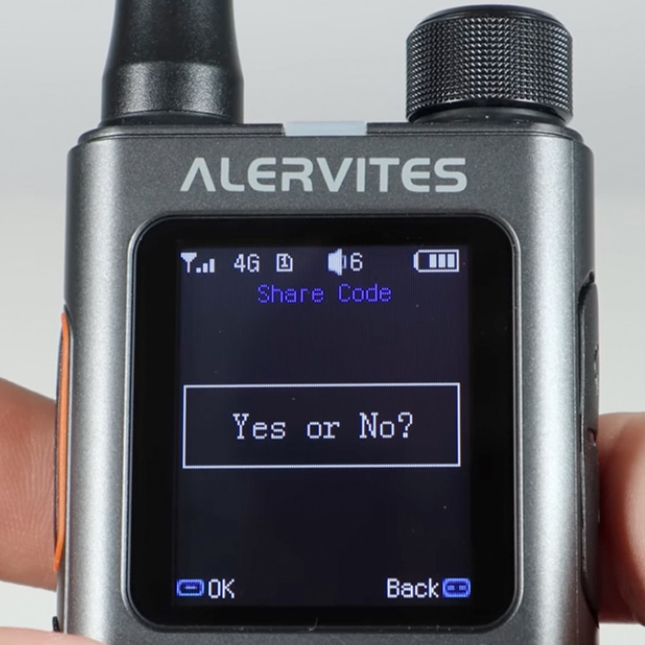
Method 2: Send Share Code via WhatsApp, SMS or email
Method 1: QR Code
- Open group in Ola Radio app
- Tap "Invite Members" → generate QR code
- New member scans with their app
- Instantly added to the group
Method 2: Share Code
- Open group in Ola Radio app
- Tap "Invite Members" → copy share code
- Send via WhatsApp, SMS, or email
- New member enters code in their app
Advanced features — getting more from your PoC-AT1
Once your team is set up, explore these additional features available through the radio and the Ola Radio app:
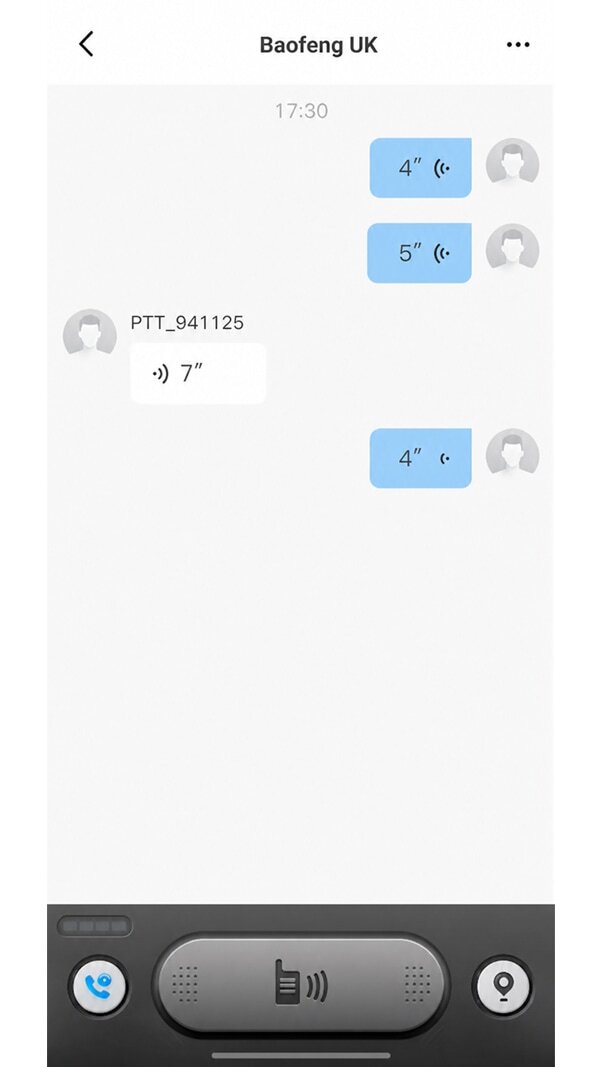
Message history — replay any past PTT transmission at any time.
Message History & Replay
All PTT transmissions are logged in the Ola Radio app. Replay any past message at any time — useful for reviewing instructions, confirming handover details, or resolving disputes about what was communicated.
SOS Emergency Alert
Activate the SOS function to broadcast an emergency alert to all group members simultaneously, including the sender's location. Gives team managers immediate awareness of field incidents.
Location Tracking
Track the real-time location of all online group members from the Ola Radio app:
- Open Ola Radio app → Select your Group
- Tap the Location / Map icon
- View all online members' real-time positions on a live map
- Adjust the reporting interval in Group Settings to control update frequency
Temporary Calls
Start an instant private or multi-person PTT session without changing your current group settings:
- Open Ola Radio app → Select your Group
- Tap a member's name → Select Temporary Call
- Selected member(s) receive a call notification
- Call ends → all radios automatically return to the original group
Device Settings
Access the radio's settings menu to adjust: backlight timeout, power options, notification tones, and microphone gain (Mic Gain). Increasing mic gain is useful in noisy environments such as construction sites and large events.
Quick setup checklist — from unboxing to first call
✅ Complete this checklist in order
- ☑ Step 1: Unbox and confirm all contents are present
- ☑ Step 2: Charge via USB-C and power on — wait for 4G icon on screen
- ☑ Step 3: Download Ola Radio app (iOS or Android) and register free account
- ☑ Step 4: Find IMEI on the radio — Menu → About
- ☑ Step 5: Bind device in app by scanning IMEI code
- ☑ Step 6: Create group in app and add your bound devices
- ☑ Step 7: Invite members via QR code or Share Code
- ☑ Step 8: Select group on radio using Group Knob
- ☑ Step 9: Press PTT — you're live!
Things to know before you buy — honest limitations
✓ Strengths
- Unlimited range across UK & Europe
- No programming cables or PC software
- No radio licence required
- Fully encrypted — cannot be intercepted by scanners
- Lifetime free data — zero monthly charges
⚠ Limitations
- Requires 4G LTE signal — no off-grid use
- May not work in deep basements or remote areas
- ~0.5 second latency on some calls
- Only communicates with other PoC devices on same platform
- Not a standalone backup in full grid-down scenarios
▶ Expert recommendation: For emergency preparedness, pair PoC with a traditional backup radio. The PoC-AT1 is ideal for everyday professional operations. A traditional handheld is a better choice when operating in areas with no mobile coverage or in off-grid scenarios.
Frequently asked questions
Which regions is the PoC-AT1 compatible with?
We supply the EU Version only, compatible with the UK and all European countries. This version is designed for European LTE network bands and activates correctly when shipped to any UK or EU address. The EU Version is not compatible with the United States, Canada, or Mexico. Cross-regional use will cause activation failure.
Is the data plan really lifetime free?
Yes. Each unit includes a 1-year initial data plan at no cost, supporting 80–160 hours of voice use per month with 800MB data. After the first year, provide the SIM ID and renewal is handled at no additional cost. No hidden fees, no monthly charges, ever.
Does the PoC-AT1 require a radio licence in the UK?
No. The PoC-AT1 communicates over public 4G LTE networks, not licensed radio frequencies. No UK Amateur Radio Licence or Business Radio Licence is required. It is legal to use by anyone in the UK with compatible LTE coverage.
Can I talk to someone in a different UK city or European country?
Yes — unlimited range as long as both parties have 4G signal and are in the same group. This is one of the core advantages of PoC over traditional walkie-talkies.
Do I need a dealer to add new users to my group?
No. The PoC-AT1 supports on-device group management. New members join instantly via QR code or Share Code through the Ola Radio app — no dealer programming, no IT support required.
What is the difference between PoC and a traditional walkie-talkie?
Traditional radios use RF transmission and are limited by terrain, buildings, and distance. PoC uses 4G LTE cellular infrastructure to route voice through a cloud platform — removing all RF limitations. PoC requires LTE signal to work, whereas traditional radios operate off-grid. Both technologies complement each other.
How many people can be in one group?
Each group supports up to 1,000 members. Each device can belong to up to 66 groups. This scales from small two-person teams to large enterprise operations with hundreds of members across multiple departments.
Ready to Try the Alervites PoC-AT1?
Available in 1, 2, 4, 6, 8, 10, and 20-unit packs. Lifetime free data plan included with every unit. EU Version — compatible with UK and all European countries.
Shop Alervites PoC-AT1 →